

Category Sort Walkthrough – All Levels
Match the meaning. Make room for the next card.
Independent fan-made guides. Not affiliated with the game developer.
Browse levels
Recently updated
Inside Category Sort
About the game
Category Sort is a solitaire-style emoji puzzle published by Lion Studios Plus for Android, iPhone and iPad. Match illustrated cards to their category labels and complete the groups.
Read the labels, watch the category counters and compare the exposed cards with your walkthrough before following a move.
Choose from 194 numbered video walkthroughs, with short play advice and nearby level navigation.
- Publisher
- Lion Studios Plus
- Platform
- Android, iPhone, iPad
- Guide coverage
- 194 levels
- Last updated
- Game store
- App Store

Category Sort is a solitaire-style puzzle about placing emoji cards into their matching categories. Read each category label, inspect the exposed cards, and complete the groups while managing the space and moves shown on your board. Find your level above to watch a walkthrough, or start with the practical guides below.
Meet the emoji sorting game
Category Sort is published by Lion Studios Plus on Android and the Apple App Store. Its store description centers on memojis, category matching, limited space and increasingly tricky arrangements. Instead of building numerical card sequences, you organize objects and characters by their meaning. The same board can contain food, people, equipment and category cards, so reading the labels is part of the puzzle.
These guides cover that mobile card game. A search for category sorting activity can also lead to educational exercises, and other apps share similar names. Compare the publisher and the screenshots before downloading. Use the linked stores for the app itself; this website provides walkthroughs and does not host a playable copy or an app installer.
The board is a collection of decisions
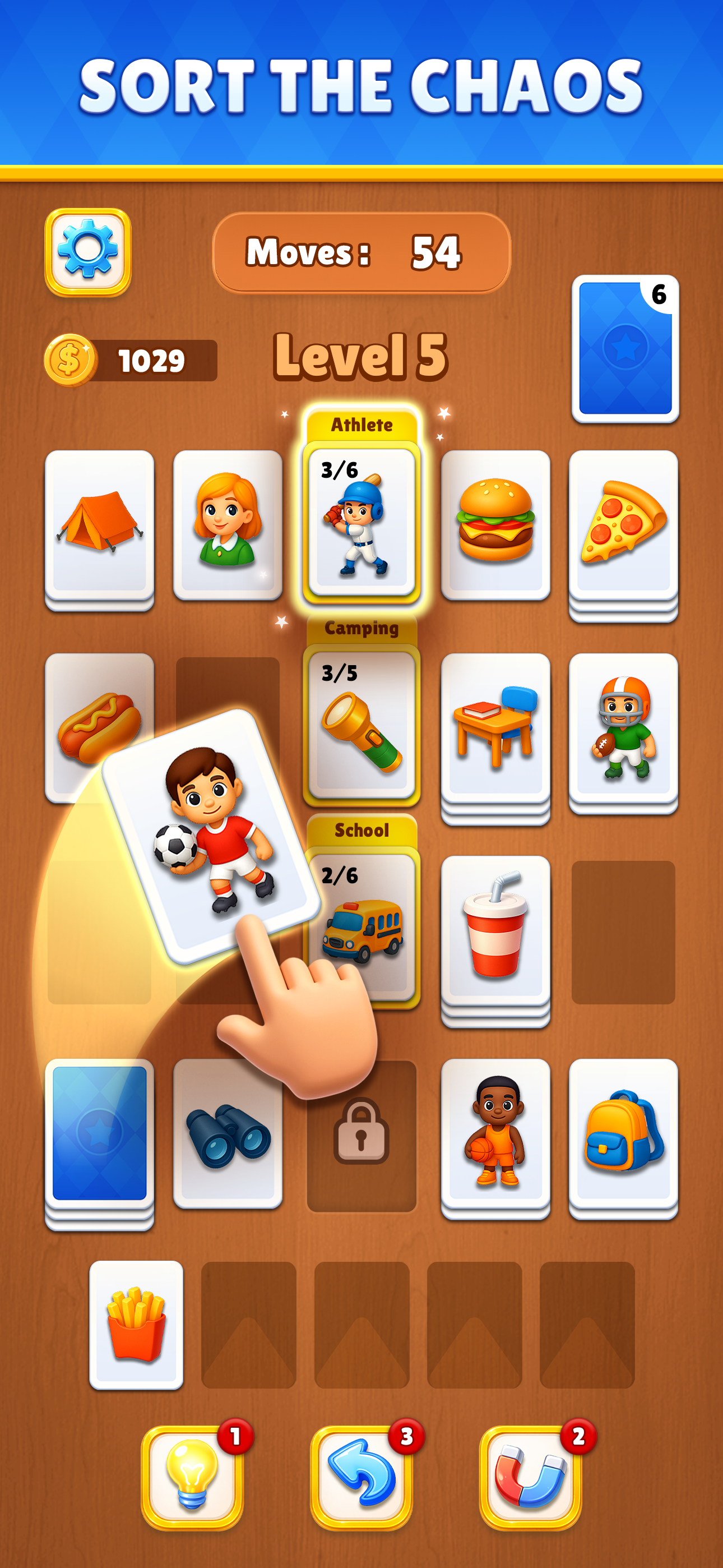
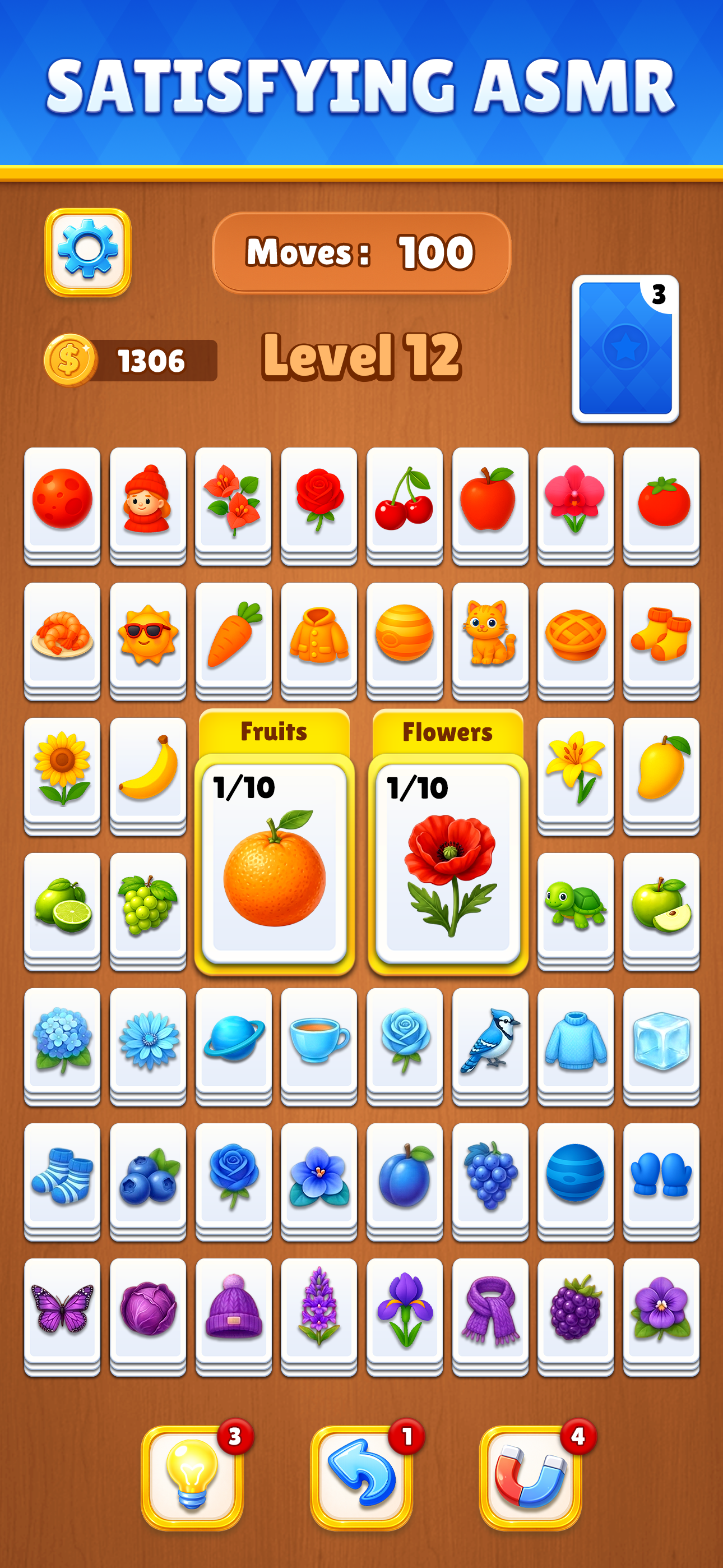
The store images show white cards arranged in columns on a warm wooden surface, yellow category cards in the middle, and a blue-backed draw pile. A category card combines a label with a counter. In one screenshot, Athlete appears with 3/6 while Camping shows 3/5. Those numbers make the current group progress visible; they are not universal group sizes for every level.
A soccer player can suggest Athlete, while a torch can suggest Camping. These examples explain the relationship between a picture and a label. They do not establish a complete move order for the promotional board. Before moving a card, check its intended destination, whether it is exposed, and what the move would uncover underneath.
Find the answer that matches your level
Enter your level number or choose a range of fifty levels. Each available page opens a credited YouTube walkthrough with short play advice. Compare the starting cards, category labels and available slots before copying a move. Pause after the next useful action to give yourself time to reproduce it in the app.
The visible arrangement matters as much as the number. If a video shows different categories, do not spend your remaining moves forcing that sequence onto your board. Check the game version and language, then compare nearby walkthroughs. The number of guides in this index is the site's coverage, rather than a claim about the game's total number of levels.
Sorting well means preserving choices
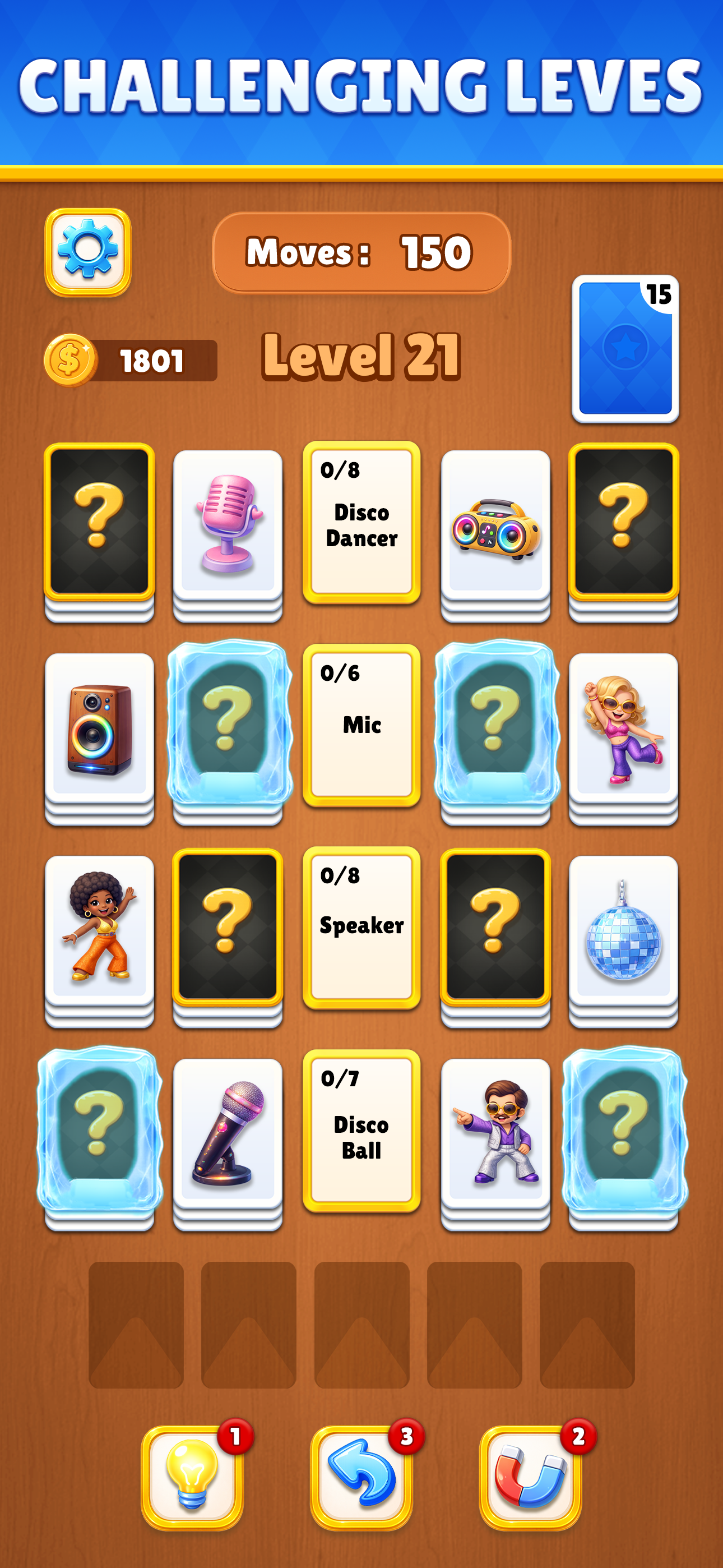
Start with a category whose exposed cards you can identify confidently. Read narrow labels literally: a microphone and a speaker are both connected with music, but a board that separates Mic and Speaker asks you to distinguish them. Similar colors or a shared scene do not automatically put two pictures into the same group.
Space also matters. Before using an open position, decide which blocked card you intend to reach with it. A move that exposes a category or useful object can be more valuable than one that only makes a row look tidy. Recheck the board after a group finishes because the available choices may have changed.
Moves, hidden cards and help buttons
The promotional boards display a Moves counter, face-down cards and a draw pile. Another screenshot includes question-mark cards and ice-framed cards. Treat an unrevealed card as unknown until the game reveals it. Do not build a long plan around an assumed picture, and do not assume every obstacle behaves the same way in every release.
The lower toolbar shows lightbulb, curved-arrow and magnet-style icons with small counters. Open the game's explanation before using a tool, and read any resource or advertising confirmation. A video may use a different allowance from yours. Watch the point where help is used and decide whether you can still follow the route with the resources currently available to you.
Difficulty comes from overlapping meanings
The store describes increasing difficulty through new categories, restricted room and tricky arrangements. A higher number alone does not explain the exact challenge on your current board. Identify the actual bottleneck: a buried category, an ambiguous picture, a crowded set of columns or too few moves left to recover from an unnecessary transfer.
When you are stuck, say the candidate relationship in a short sentence. Does every card you want to place fit that sentence? Then inspect what moving the card exposes. This separates the meaning problem from the access problem. Use a walkthrough to resolve the next uncertainty, instead of repeatedly testing guesses until the move counter is exhausted.
Free download, purchases and practical problems
The mobile listings include advertising and in-app purchases. Check the store listing for your region and the exact offer shown in the app; a free download does not imply that every optional feature is free. This guide has no access to your game purchases, progress or store account. For a billing issue, keep the receipt and use the store or developer support route.
If the app freezes, check for an update, reopen it and confirm that your connection works. Record your level and version before troubleshooting. Find out whether progress is backed up before clearing storage or reinstalling. If a guide video will not play, use its Watch on YouTube link, or try a browser and network where YouTube is available.
Frequently asked questions
What is Category Sort?
It is the Lion Studios Plus solitaire-style emoji puzzle in which you place illustrated cards into matching categories. The challenge combines recognizing an object or role with managing the cards you can currently access. Compare the publisher and the store pictures when searching, because unrelated sorting games use similar names.
How do I play Category Sort?
Read the category labels, inspect exposed cards and place each card into a matching group using the interaction taught in the app. Watch the category counter and any newly revealed cards after each move. Continue until the game confirms the board is complete, while respecting the moves and space available.
Where are the Category Sort answers?
Choose your numbered level from this directory to open a video walkthrough. Compare its starting board with your app before following the actions. Pause after the next useful decision if you only need a small hint. The category labels explain why the demonstrated cards belong together.
How many levels does Category Sort have?
There is no fixed total stated here. The guide count describes this website, rather than every board in the app. Check your current game version and its level map for the content available to you. A channel playlist or a search result ending at one number does not establish the game’s total.
Why does my level look different from the video?
First compare the app name, publisher, version and game language. Then compare categories, exposed pictures and the arrangement of columns. If those do not match, avoid copying the sequence blindly. Check nearby walkthroughs or report the level and category labels so the mismatch can be understood.
What does the counter on a category mean?
The store boards show progress-style counts beside category labels, such as 3/6 for Athlete and 3/5 for Camping. Read the value on your own board rather than expecting the same group size everywhere. After placing a card, watch the game’s feedback to see how that specific category changes.
Should I group cards that have the same color?
Use the meaning of the category label as your starting point. Shared colors can be incidental. Two objects associated with music may still need different destinations when the labels separate microphones and speakers. Explain the intended connection in a short sentence before committing an uncertain card.
How should I use an empty position?
Give the temporary placement a purpose. Decide what card it would expose and where the moved card would eventually go. Keeping useful working room can make later decisions easier, but the correct transfer depends on your current board. Follow the app’s accepted moves instead of importing another solitaire game’s rules.